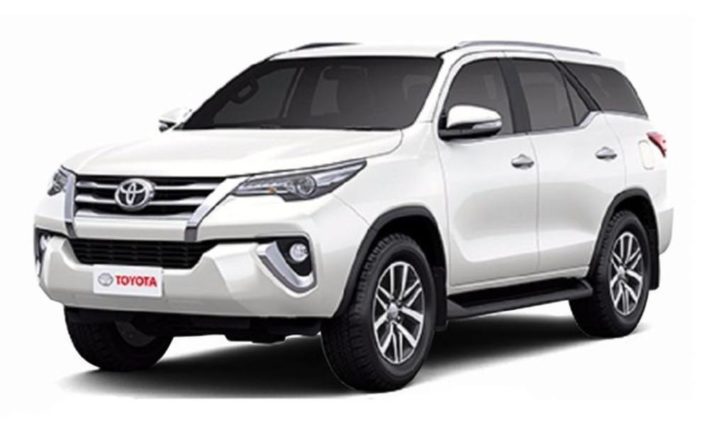
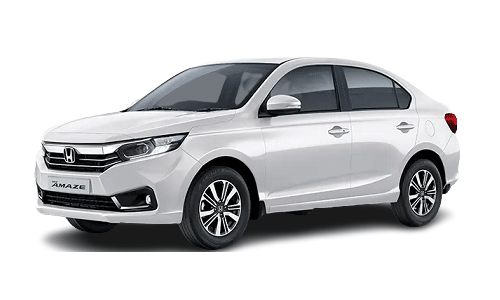
We are working round the clock to cater needs to our cross cultured customers using modern technology to provide our services to you via the internet. We offer taxi services within Himachal Pradesh and neibhouring States, including train station pick up drop, Chandigarh airport pickup and drop, Airport shuttle to New Delhi, our scheduled taxi services are running from Chandigarh to Shimla and Manali and in all himachal pradesh on request. We also offer daily cabs and taxi services from himachal Kalka, taxi from Shimla to Amritsar and taxi service from Chandigarh to Shimla manali and Kullu tours. Contact routetoworld for taxi booking on the customized tours intierary. We have been awared with good reviews from our customers acorss the globe. Give us a chance to be at your service.
In addition to regular taxi booking service we also provide package tours to different destinations throughout North India. Some of the famous package tours are listed below. We will provide you accommodation, food etc. at very competitive rates. Please contact us for your specific requirements and we will be happy to provide you with a quote.
Commence your tour after getting picked up from your hotel at Manali and reach the tour locality. Hike through lush-green thickets while enjoying the scenic landscapes comprising of stunning waterfalls sprawling the region. Reach Kasol and marvel at the sights of the snow capped peaks under the blue sky at the horizon. Explore the nearby places and camp for the night with a delicious dinner and a bonfire. Continue your trek through beautiful landscapes and witness the Himalayan Village, a getaway with an offbeat touch before reaching Manikaran, Visit the famous Manikaran Sahib and enjoy the hot springs inside the premises of the Gurudwara. End your tour by returning back to Manali with lots off memories. Show less Stay * Camps Meal * Dinner Included Activity * Trekking * Sightseeing * Camping Other Inclusions * Welcome drink * Swimming pool * Gym Transport * Pick and drop from hotel in a Tata Sumo Things To Carry * First aid kit * Power bank * Woolen clothes Advisory * A minimum of 6 people are required for this trek. Tour Type * This activity can be availed as a private or group tour Cancellation Policy * If cancellations are made 30 days before the start date of the trip, 25% of total tour cost will be charged as cancellation fees. * If cancellations are made 15-30 days before the start date of the trip, 50% of total tour cost will be charged as cancellation fees. * If cancellations are made within 0-15 days before the start date of the trip, 100% of total tour cost will be charged as cancellation fees. * In case of unforeseen weather conditions or government restrictions, certain trips or activities may get cancelled. In such cases operator will try their best to provide an alternate feasible. However a cash refund will not be applicable for the same. * Cancellations are strictly subjected to cancellation policies mentioned on the website & are irrespective of the date of booking. Show more Refund Policy * The applicable refund amount will be processed within 15 business days * All applicable refunds will be done in traveller's thrillophilia wallet as Thrillcash Booking Confirmation Policy * The customer receives a confirmation voucher via email within 24 hours of successful booking * In case the preferred slots are unavailable, an alternate schedule of the customer’s preference will be arranged and a new confirmation voucher will be sent via email. * Alternatively, the customer may choose to cancel their booking before confirmation and a full refund will be processed.
For multiple lines of code, use the <pre> element which defines preformatted text. It creates a new text block that preserves spaces, tabs and line breaks. Nest a <code> element inside to define the code block.
IMPORTANTBe sure to escape any angle brackets in the code for proper rendering.
<pre>
    <code>...</code>
</pre>
Lists
Create an unordered list using the <ul> element and the <ol> element for ordered lists. The <li> element defines the list item.
NOTEYou can also use additional UIkit classes for the lists. You will find more details here.
Description lists
Create a description list using the <dl> element. Use <dt> to define the term and <dd> for the description.
Description lists
A description list defines terms and their corresponding descriptions.
This is a term
This is a description.
This is a term
This is a description.
<dl>
    <dt>...</dt>
    <dd>...</dd>
</dl>
NOTEYou can also use additional UIkit classes for the description lists. You will find more details here.
Tables
You can easily create tables using the <table> element. Use <thead> to define the table headings, <tfoot> to define the table footers and <tbody> to define the table body.
NOTEYou can also use additional UIkit classes for the forms. You will find more details here.
Grid
This section shows how you can create different grids layouts with columns and rows.
Gantry5 Grid System
Gantry5 comes with its own CSS framework called "Nucleus". It is based on the Flexbox model and therefore is really flexible and allows you to build advanced layouts.
Gantry5 grid system or better said "Nucleus" grid system does not have a grid gutter, it uses the .g-content class instead.
As you can see in the above example, all 3 blocks are surrounded by empty space. This empty space comes from the .g-content class which adds some margin and padding to the element.
We have added a utility class to the template which takes care of the unnecessary spacing and makes the whole grid looks more natural. The utility class is called .g-gutter.
"Nucleus" comes with another very useful class called .size-# where # is the percentage of the whole width of the grid a particular element should occupy.
The grid system of UIkit follows the mobile-first approach and accomodates up to 10 grid columns. It uses units with predefined classes inside each grid, which define the column width.
To create the grid container, add the .uk-grid class to a parent element. Add one of the .uk-width-* classes to child elements to determine, how the units shall be sized. The grid supports 1, 2, 3, 4, 5, 6 and 10 unit divisions.
NOTEYou can also use additional UIkit classes for the alerts. You will find more details here.
Modal
This section shows how easy it is to use modals.
The modal component consists of an overlay, a dialog and a close button.
Class
Description
<.uk-modal>
Add this class to a <div> element to create the dialog container and an overlay that blanks out the page. It is important to add an id to indicate the element for toggling.
<.uk-modal-dialog>
Add this class to a child <div> element to create the dialog box.
<.uk-modal-close>
Add this class to an <a> or <button> element to create a close button within the dialog box. We recommend adding the .uk-close class from the Close component to give the button a proper styling, though you can also use text or an image.
You can use any element to toggle a modal dialog. An <a> element needs to be linked to the modal's id. To enable the necessary JavaScript, add the data-uk-modal attribute. If you are using another element, like a button, just add the data-uk-modal="{target:'#ID'}" attribute to target the modal's id.
Lorem ipsum dolor sit amet, consectetur adipisicing elit, sed do eiusmod tempor incididunt ut labore et dolore magna aliqua. Ut enim ad minim veniam, quis nostrud exercitation ullamco laboris nisi ut aliquip ex ea commodo consequat. Duis aute irure dolor in reprehenderit in voluptate velit esse cillum dolore eu fugiat nulla pariatur. Excepteur sint occaecat cupidatat non proident, sunt in culpa qui officia deserunt mollit anim id est laborum.
<!-- This is an anchor toggling the modal -->
<a href="#my-id" data-uk-modal>...</a>

<!-- This is a button toggling the modal -->
<button class="button" data-uk-modal="{target:'#my-id'}">...</button>

<!-- This is the modal -->
<div id="my-id" class="uk-modal">
    <div class="uk-modal-dialog">
        <a class="uk-modal-close uk-close"></a>
        ...
    </div>
</div>
NOTEYou can find more details and options about the modals here.
Lightbox
This section shows how easy it is to create a fancy lightbox for images and videos.
To apply this component, add the data-uk-lightbox attribute to an anchor linking to the image you wish to display. If a title attribute exists it will be displayed as a caption for the lightbox.
You can link multiple images to the same lightbox and switch between them from within the lightbox, thus creating a gallery. Just add the {group:'my-group'} option to the data attribute of each item using the same name on all items that you want to group.
A lightbox is not restricted to images. Other media, like videos, can be displayed inside a lightbox and it will automatically generate the correct output by evaluating your path.
NOTEYou can find more details and options about the lightbox here.
Tooltip
This section shows how easy it is to create a nicely looking tooltip.
To create a tooltip, add the data-uk-tooltip attribute to an element. You also need to add a title attribute, whose value will represent your tooltip's text.
NOTEYou can find more details about the tooltip here.
Tabs
This section shows how easy it is to create a tabbed navigation with different styles.
The Tab component consists of clickable tabs, that are aligned side by side.
Class
Description
.uk-tab
Add this class to a <ul> element to define the Tab component. Use <a> elements as tab items within the list.
.uk-active
Add this class to a list item to apply an active state.
.uk-disabled
Add this class to a list item to apply a disabled state.
The data-uk-tab attribute is required for two purposes. Firstly, it enables the responsive behaviour. If the parent container is too small to accomodate all tabs, they will be combined into a dropdown, toggled by a single tab, which represents the active tab item.
And secondly, its functionality is coupled to the Switcher component, which is necessary to dynamically transition through different contents using tabbed navigation.
There are many more options and layouts available for the tabs, for example centered tabs, tabs on the left, tabs on the right, etc. You will find all these details on the UIkit website.
NOTEYou can find more details and options about the lightbox here.
Accordions
This section shows how easy it is to create a list of items, allowing each item's content to be expanded and collapsed by clicking its header.
To create an Accrodion, add the uk-accordion class and the data-uk-accordion attribute to a container element. Add the uk-accordion-content class to each of the content sections within the container. Finally, add the uk-accordion-title class to any element, like a heading, above the content section to create a toggle.
Heading 1
Lorem ipsum dolor sit amet, consectetur adipiscing elit, sed do eiusmod tempor incididunt ut labore et dolore magna aliqua. Ut enim ad minim veniam, quis nostrud exercitation ullamco laboris nisi ut aliquip ex ea commodo consequat. Duis aute irure dolor in reprehenderit in voluptate velit esse cillum dolore.
Heading 2
Lorem ipsum dolor sit amet, consectetur adipiscing elit, sed do eiusmod tempor incididunt ut labore et dolore magna aliqua. Ut enim ad minim veniam, quis nostrud exercitation ullamco laboris nisi ut aliquip ex ea commodo consequat. Duis aute irure dolor in reprehenderit in voluptate velit esse cillum dolore.
Heading 3
Lorem ipsum dolor sit amet, consectetur adipiscing elit, sed do eiusmod tempor incididunt ut labore et dolore magna aliqua. Ut enim ad minim veniam, quis nostrud exercitation ullamco laboris nisi ut aliquip ex ea commodo consequat. Duis aute irure dolor in reprehenderit in voluptate velit esse cillum dolore.
UIkit is a lightweight and modular front-end framework for developing fast and powerful web interfaces. It comes with a wide range of reusable and combinable components. All UIkit classes are namespaced, so they won't interfere with other frameworks and extensions you might be using.